
User Guide · Timeline
A step-by-step walkthrough of every control — from choosing your engine and focus filter to reading the output and understanding the evidence trail.
In this guide
The engine controls the AI model used for extraction. Both engines use Azure OpenAI (West Europe). gpt-4o-mini costs 1 credit; gpt-4o costs 2 credits.
| Engine | Speed | Best for |
|---|---|---|
| Azure gpt-4o-mini ★ | Fast (~15 s) | Default. Everyday extractions, long documents, first pass. |
| Azure gpt-4o | Best quality (~45 s) | Complex documents, overlapping events, ambiguous or poorly formatted source text. |
The focus filter scopes what kinds of events the AI looks for. Found in the Advanced settings panel (click to expand).
| Mode | What it extracts | When to use |
|---|---|---|
| All events ★ | Every temporal reference in the document — background, operational, deadlines, narrative | Building a complete chronology from scratch |
| Legal deadlines | Filing deadlines, appeal windows, statutory time limits | Checking whether you've missed a deadline or when you must act next |
| Court hearings | Tribunal sessions, mediation dates, court appearances | Preparing for a hearing or reconstructing hearing history |
| CPS milestones | Barnevernet interventions, akuttplassering, tiltaksplan milestones, Fylkesnemnda proceedings | Child welfare cases needing a CPS-specific chronology |
Controls whether uncertain events appear in the output. Also in the Advanced settings panel.
| Setting | What it does |
|---|---|
| Show all events ★ | Returns all extracted events including LOW-confidence ones (shown in grey). Use for a complete picture — decide yourself what to trust. |
| Hide low-confidence | Suppresses any event the model isn't reasonably certain about. Use when you need a clean, defensible timeline for court or legal filing. |
LOW-confidence events are typically those where the date is implied rather than stated, relative to an unclear reference point, or extracted from a degraded or ambiguous section of the source.
Default: ON (checked). When checked, historical context dates are included — dates like "born 30.07.2015", "met around 2011/2012", "married in 2009". These establish the narrative and biographical context of a case.
When to uncheck: if you only want operational events and decisions — not biographical background. Unchecking substantially reduces event count in case notes that mix history with current proceedings. Useful when you're building a deadline tracker or action list rather than a full chronology.
Default: ON (checked). When checked, relative references ("tre uker etter vedtaket"), recurring patterns ("each Monday", "every 6 months"), and conditional dates ("if no response within 14 days") are included alongside absolute dates.
When to uncheck: if you need only exact calendar dates — for example when exporting to a calendar app, a deadline tracker, or a court submission that requires hard dates only. Unchecking removes all events without a resolvable absolute date.
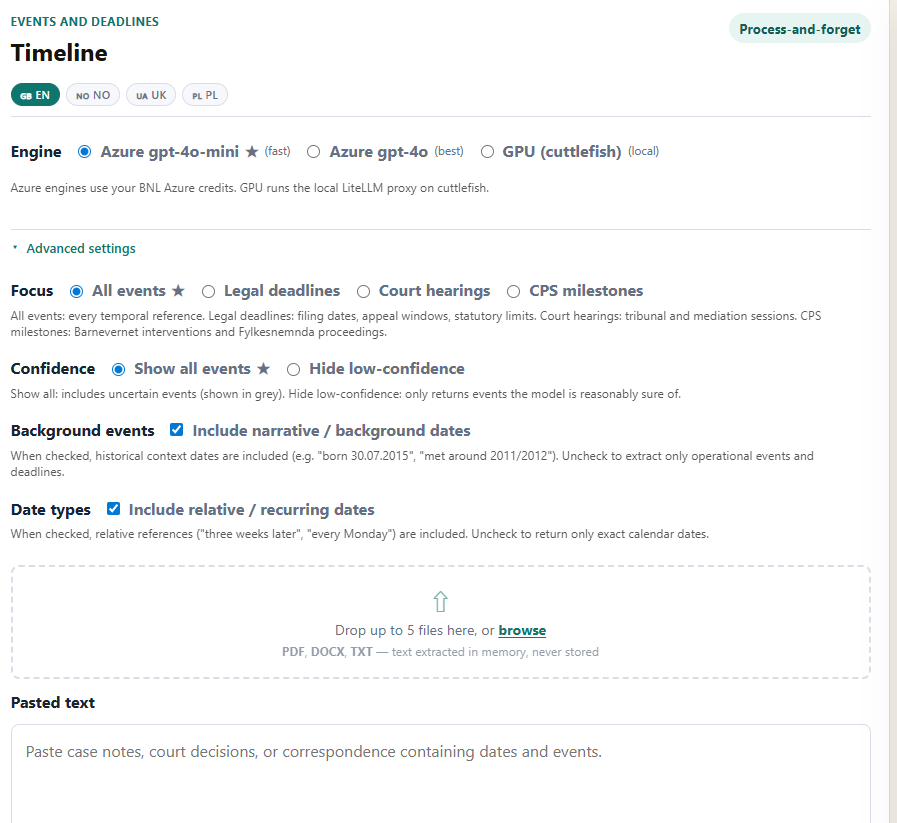
Drag files onto the upload zone or click browse. A file list appears below with a Clear button to remove files.
Supported formats: PDF, DOCX, TXT. One file per run.
Files are extracted to text in memory. Nothing is written to disk. Nothing is retained after the session ends.
Uploaded file and pasted text can be combined — the AI reads both together as a single input. For cases spanning multiple documents, paste additional text into the text area alongside the uploaded file.
Paste up to 128,000 characters of text into the main text area — approximately 90–100 pages of A4. This can include case notes, decision letters, correspondence, or any document containing dates.
Context notes (optional, up to 2,000 characters): use this field to guide the AI on ambiguities in your document. These notes are passed directly into the extraction prompt and are not stored. Good examples:
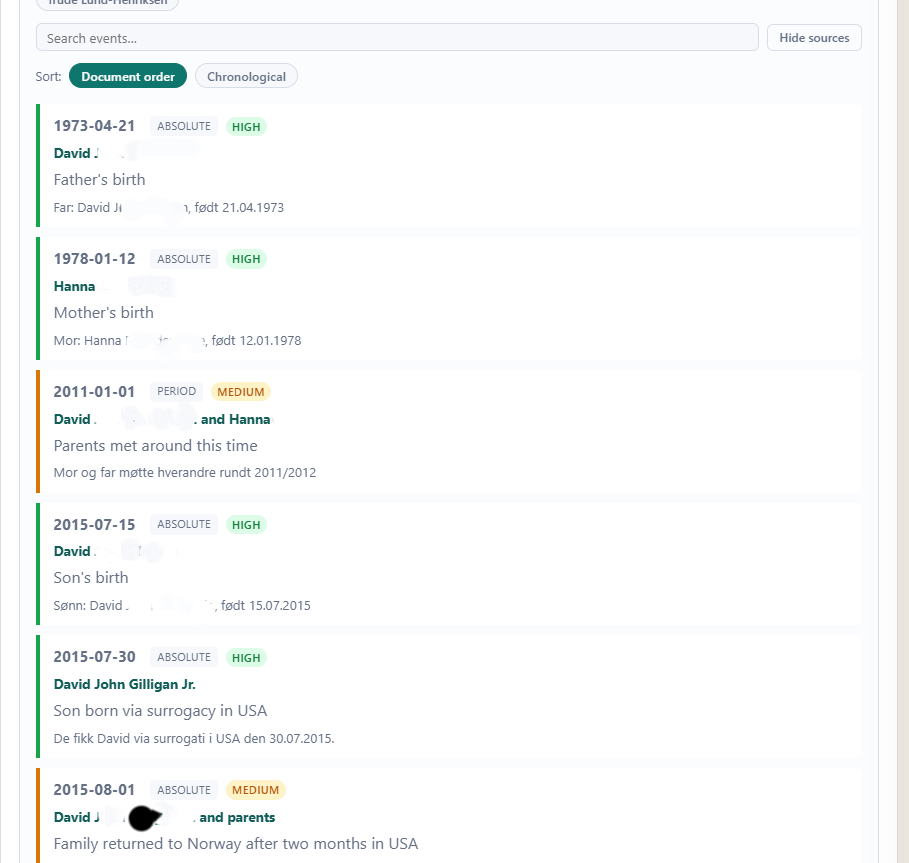
Each event card in the timeline contains:
ABSOLUTE / RELATIVE / RECURRING / CONDITIONAL / PERIOD. Tells you how the date was expressed in the source.HIGH (green — clearly stated), MEDIUM (amber — inferred), LOW (grey — ambiguous). LOW events appear greyed out when "Show all" is selected.Sorting: use the sort toggle above the timeline to switch between Document order (the order events appear in your source) and Chronological (oldest to newest).
Search: type any keyword to filter events. The search matches against date, actor, description, and source excerpt simultaneously.
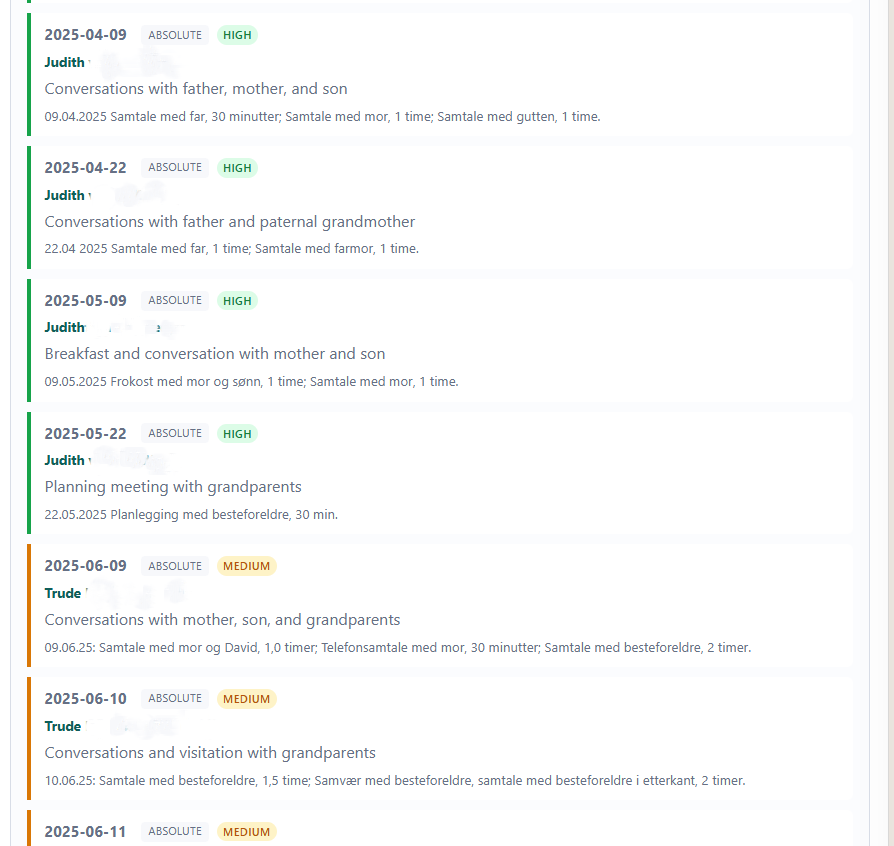
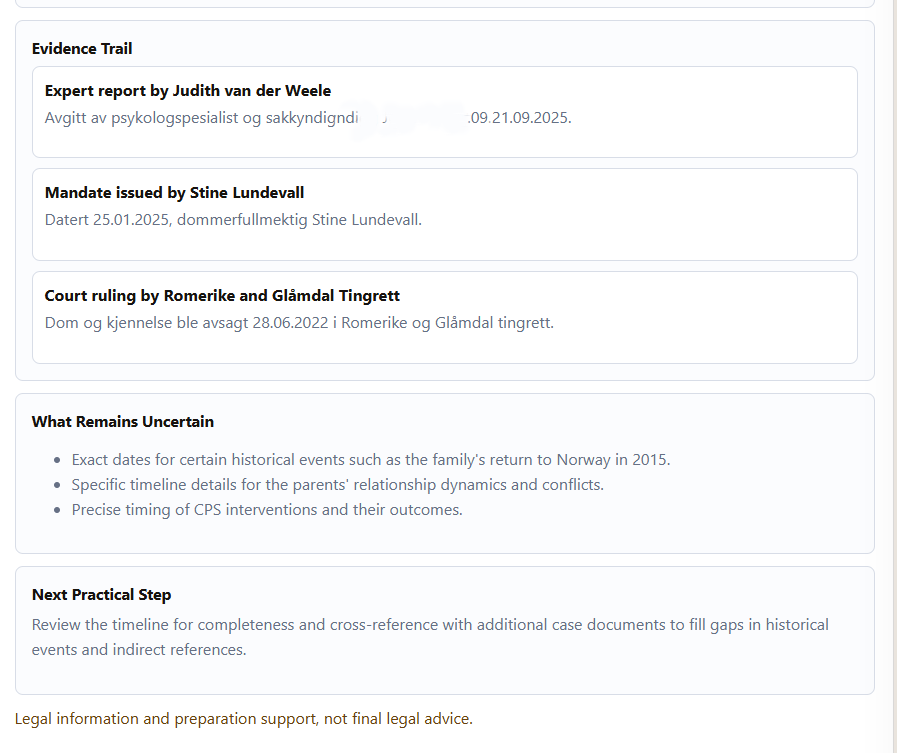
Three sub-sections appear below every timeline:
The disclaimer at the bottom confirms that Timeline provides preparation support, not legal advice.
Free for Do Better Norge members.